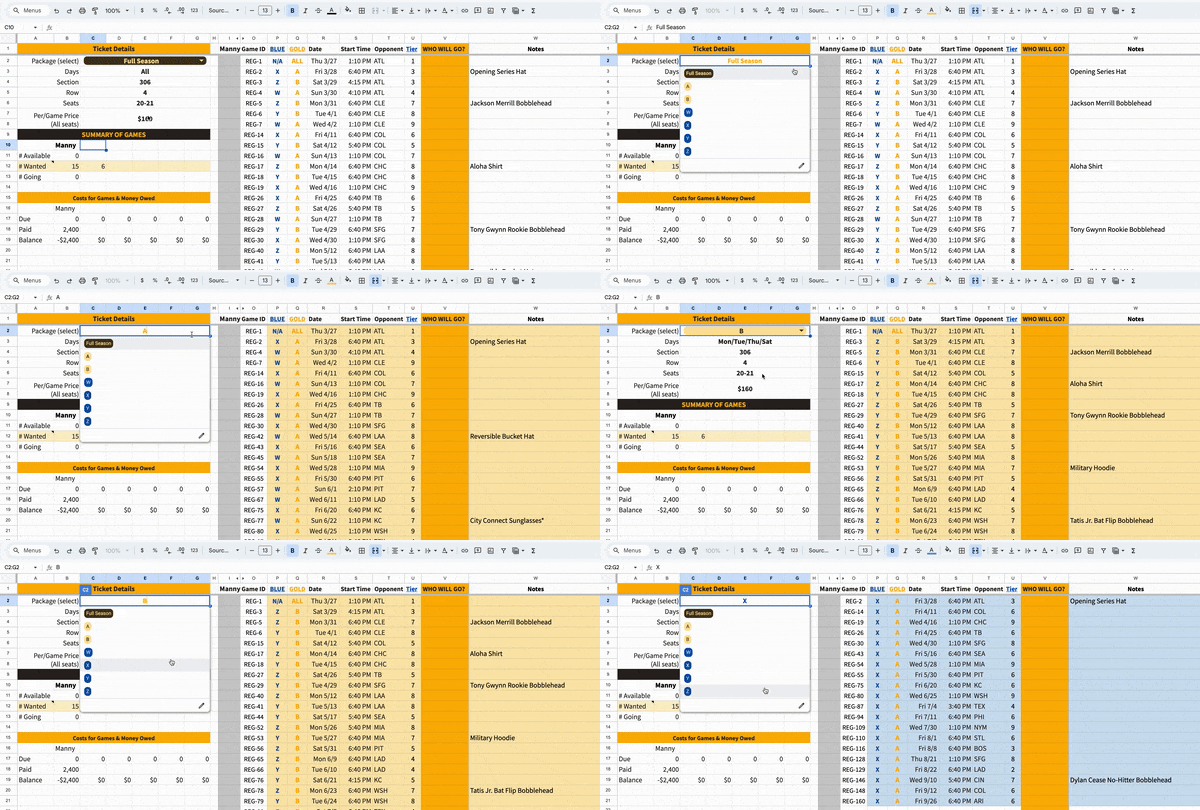
February sneaks up on you, and suddenly the 2026 MLB season is upon us! Naturally, I’m excited to share a fresh edition of my Padres Season Ticket Manager. If you’ve used this project before, welcome back. Grab the link below to get access and create your copy. If you want to show your appreciation you can buy me a beer on Ko-Fi.
⚾️ Copy the 2026 TemplateLatest Enhancements
- Stronger Sync with Calendar Events1
- Track your Game-Tier Pricing (1-9)
- Up to 5 collaborators (six total users)
- Improved filters and usability with warnings
- Giveaways come preloaded (subject to change)2
- Continued support for calendar integration with 3rd party extension
If you are new or looking for a refresher, below is an instructional video for a quick overview. If you want to go deeper, keep reading below for my user guide that describes how to effectively use the spreadsheet at length.
Visual Learner? Watch the Video Guide (click to expand)
User Setup Guide
If you’d prefer to learn how to use my Ticket Manager through longer-form documentation, keep reading… And, if you have feedback, suggestions or questions, don’t hesitate to drop me a line. Email me.
My Season Sheet
The purpose of this sheet is to primarily serve as a summary view or dashboard. The goal is to only show the games relevant to you, based directly on the package you select. Complete the steps below:
- Select Your Package: Choose your season ticket package (full, half, quarter).
- Add Members: Enter the names of your fellow ticket holders.
- Set Game Preferences (Optional): Input the number of games each member wants to attend.
- Add Ticket Details (Optional): Include your seat location and cost information if you want, to help keep track of balances due.
Tip
The user balances due are now also calculated based on tiers, and tier game pricing. Input your price per game for all tiers (1-9) on the Formulas & Lookups sheet to track costs more precisely.
Full Season GUI Sheet
This is where most of the heavy lifting will take place. There is a lot of information on this sheet, so I added filters in the top menu to hide games and make it easier to navigate. Complete the following:
- Mark Availability: Indicate your availability for each game. Use this to track which games you can attend or which ones you might want to trade.
Y for Yes / Available (formats green)
N for No / Unavailable (pink)
? or any other character for unknown / maybe (yellow)
- Share with Collaborators (Optional): If you have others who are comfortable using Google Sheets to simply enter their availability, give them access to have them also enter their availability. This will help in assigning games.
- Assign Games: Assign games to members in your group in whatever method you deem fairest using the WHO WILL GO column. The game tiers and giveaways are helpful reference points to consider.
- Track Non-Package Games: Use the WHO WILL GO? column to track games outside your package that you want to attend, trade, or sell.
Tip
The formula in the Notes field contains Giveaways, but you can customize this further, since this field populates the calendar event description. Use it to include helpful context, i.e. to reflect a trade-in where your seats are in a different section and row.
You can overwrite the value in Column U on the Full Season GUI sheet. If you want to append to the giveaway item, edit the formula to include your notes. For example:
& char(10) & "Theme Game: Special Item"
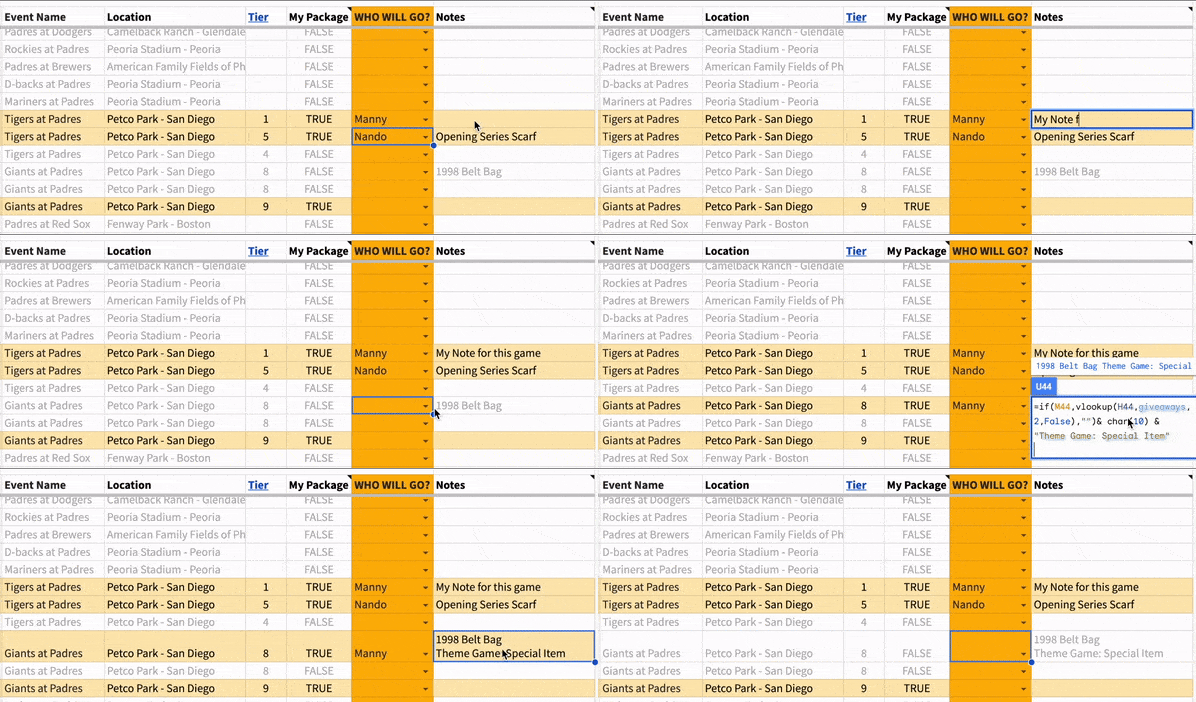
Modify game assignments and notes easily on the Full Season GUI sheet.
Google Calendar Integration
Note
This was the focus of my time spent updating for this year. I hope you’ll find it easier and more intuitive. As usual, let me know if you have any questions or issues.
To really add convenience for myself and my co-members with whom I share games, synchronizing the events on My Season to a Google Calendar is worth the extra few minutes of setup. This ensures game assignees receive event invites to their assigned games, and prevents miscommunication or forgetting games.
Setup
-
Install Sheets2GCal: Install the Sheets2GCal add-on from the Google Workspace Marketplace.
-
Create a Dedicated Google Calendar (Optional): this helps avoid confusion, where the calendar can be viewed separately from your own personal calendar. You can invite yourself to the games assigned to you.
-
Configure the
Sync_PushSheet: Link the Calendar sheet to your Google Calendar using the Sheets2GCal add-on:- Navigate to the Extensions Menu
- Find the Sheets2GCal extension and select Configure Sheet
- Select a calendar and use the 2nd option to link to an existing calendar. Do NOT clear the sheet data, just link to the existing sheet.
-
Add User Emails (Optional): Include email addresses for each member to receive automatic event invites. Enter one email per user on the Formulas & Lookups sheet.
Sync Events
After you’ve connected to your desired Google Calendar and configured the Sync_Push sheet, you’ll use a 3-step process which is summarized in the boxes at the top:
-
Import My Season Games: this button executes a script to read the events on the
My Seasonsheet, and populates a list of events with the relevant information. As you make many updates in one session, you can repeatedly run this step before you are ready to export to the calendar. -
Export to Calendar (not a button): Write the events to the Google calendar you linked previously. You’ll see a confirmation message of how many events were created, updated or deleted. This step can be executed more quickly with the Quick Export option following your first export.
-
Sync Game IDs <> Event IDs: This final step ensures we map the Google Calendar event IDs with the games in the sheet. This helps prevent duplicate events and mismatching as you modify your games during the season.
Info
The functionality with these steps creates a link between Google’s event ID and my game ID. This more tightly couples the relationship between them, and mitigates issues that the FILTER() function may have inadvertently caused in prior versions.
The new method depends more heavily on scripts which must be approved to execute by the sheet owner.
Troubleshooting & Support
- Hide, Don’t Delete: To preserve functionality, hide columns instead of deleting them.
- Sheets2GCal Help: For questions about Sheets2GCal, refer to the developer’s documentation: https://www.sheets2gcal.com/
- Show Your Support: If you find this tool helpful, consider buying me a beer or request hands-on support.
I’m always looking for ways to improve this project. How do you customize yours? What built-in features would be helpful? If you have feedback or suggestions, please send me an email.
Forward Looking Statements
In the future, I hope to migrate this project beyond Google Sheets to integrate even more features and services. But for now, Google Sheets provides a flexible and accessible platform for managing your Padres season tickets.
Go Padres!! 🤎💛
-
In resisting the massive effort to migrate beyond Google Sheets this year, I added more scripts. For the curiously minded, you can view the scripts here. ↩︎
-
The 2026 Giveaways Schedule is subject to change. As of this is accurately reflected in the latest Google Sheet. If changes occur, users must manually override in their document. ↩︎